10 KiB
使用 Python 和 pyPdf 操作 Pdf
原文:https://www.blog.pythonlibrary.org/2010/05/15/manipulating-pdfs-with-python-and-pypdf/
有一个方便的第三方模块叫做 pyPdf ,你可以用它来合并 Pdf 文档,旋转页面,分割和裁剪页面,以及解密/加密 PDF 文档。在本文中,我们将看看其中的一些函数,然后用 wxPython 创建一个简单的 GUI,它将允许我们合并几个 pdf。
pyPdf 之旅
要充分利用 pyPdf,您需要了解它的两个主要功能:PdfFileReader 和 PdfFileWriter。它们是我用得最多的。让我们看看他们能做些什么:
# Merge two PDFs
from pyPdf import PdfFileReader, PdfFileWriter

output = PdfFileWriter()
pdfOne = PdfFileReader(file( "some\path\to\a\PDf", "rb"))
pdfTwo = PdfFileReader(file("some\other\path\to\a\PDf", "rb"))

output.addPage(pdfOne.getPage(0))
output.addPage(pdfTwo.getPage(0))

outputStream = file(r"output.pdf", "wb")
output.write(outputStream)
outputStream.close()
上面的代码将打开两个 PDF,从每一个中取出第一页,并通过合并这两页创建第三个 PDF。注意页面是从零开始的,所以零是第一页,一是第二页,以此类推。我使用这种脚本从 PDF 中提取一个或多个页面,或者将一系列 PDF 连接在一起。例如,有时我的用户会收到一堆扫描的文档,文档的每一页都以单独的 PDF 结束。他们需要将所有的单页合并成一个 PDF,pyPdf 允许我非常简单地做到这一点。
在我的日常体验中,pyPdf 提供给我的旋转功能的应用并不多,但也许你有很多横向而不是纵向扫描文档的用户,你最终需要做很多旋转。幸运的是,这是相当无痛的:
from pyPdf import PdfFileWriter, PdfFileReader

output = PdfFileWriter()
input1 = PdfFileReader(file("document1.pdf", "rb"))
output.addPage(input1.getPage(1).rotateClockwise(90))
# output.addPage(input1.getPage(2).rotateCounterClockwise(90))

outputStream = file("output.pdf", "wb")
output.write(outputStream)
outputStream.close()
上面的代码摘自 pyPdf 文档,在本例中被缩短了。如你所见,要调用的方法是 rotateClockwise 或 rotateCounterClockwise 。确保将翻页的度数传递给该方法。
现在,让我们来看看我们可以从 PDF 中获得什么信息:
>>> from pyPdf import PdfFileReader
>>> p = r'E:\My Documents\My Dropbox\ebooks\helloWorld book.pdf'
>>> pdf = PdfFileReader(file(p, 'rb'))
>>> pdf.documentInfo
{'/CreationDate': u'D:20090323080712Z', '/Author': u'Warren Sande', '/Producer': u'Acrobat Distiller 8.0.0 (Windows)', '/Creator': u'FrameMaker 8.0', '/ModDate': u"D:20090401124817-04'00'", '/Title': u'Hello World!'}
>>> pdf.getNumPages()
432
>>> info = pdf.getDocumentInfo()
>>> info.author
u'Warren Sande'
>>> info.creator
u'FrameMaker 8.0'
>>> info.producer
u'Acrobat Distiller 8.0.0 (Windows)'
>>> info.title
u'Hello World!'
如您所见,我们可以使用 pyPdf 收集相当多的有用数据。现在让我们创建一个简单的 GUI 来使合并两个 pdf 更加容易!
创建 wxPython PDF 合并应用程序
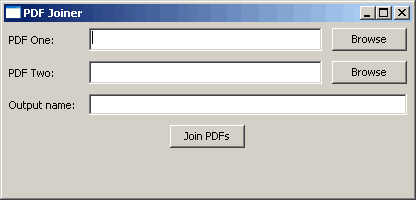
我昨天想出了这个剧本。它使用 Tim Golden 的 winshell 模块,让我在 Windows 上轻松访问用户的桌面。如果你在 Linux 或 Mac 上,那么你会想为你的平台改变这部分代码。我想使用 wxPython 的 StandardPaths 模块,但是它没有获取我可以看到的桌面的功能。总之,说够了。我们来看一些代码!
import os
import pyPdf
import winshell
import wx

class MyFileDropTarget(wx.FileDropTarget):
    def __init__(self, window):
        wx.FileDropTarget.__init__(self)
        self.window = window

    def OnDropFiles(self, x, y, filenames):
        self.window.SetInsertionPointEnd()

        for file in filenames:
            self.window.WriteText(file)

########################################################################
class JoinerPanel(wx.Panel):
    """"""

    #----------------------------------------------------------------------
    def __init__(self, parent):
        """Constructor"""
        wx.Panel.__init__(self, parent=parent)

        self.currentPath = winshell.desktop()

        lblSize = (70,-1)
        pdfLblOne = wx.StaticText(self, label="PDF One:", size=lblSize)
        self.pdfOne = wx.TextCtrl(self)
        dt = MyFileDropTarget(self.pdfOne)
        self.pdfOne.SetDropTarget(dt)
        pdfOneBtn = wx.Button(self, label="Browse", name="pdfOneBtn")
        pdfOneBtn.Bind(wx.EVT_BUTTON, self.onBrowse)

        pdfLblTwo = wx.StaticText(self, label="PDF Two:", size=lblSize)
        self.pdfTwo = wx.TextCtrl(self)
        dt = MyFileDropTarget(self.pdfTwo)
        self.pdfTwo.SetDropTarget(dt)
        pdfTwoBtn = wx.Button(self, label="Browse", name="pdfTwoBtn")
        pdfTwoBtn.Bind(wx.EVT_BUTTON, self.onBrowse)

        outputLbl = wx.StaticText(self, label="Output name:", size=lblSize)
        self.outputPdf = wx.TextCtrl(self)
        widgets = [(pdfLblOne, self.pdfOne, pdfOneBtn),
                   (pdfLblTwo, self.pdfTwo, pdfTwoBtn),
                   (outputLbl, self.outputPdf)]

        joinBtn = wx.Button(self, label="Join PDFs")
        joinBtn.Bind(wx.EVT_BUTTON, self.onJoinPdfs)

        self.mainSizer = wx.BoxSizer(wx.VERTICAL)
        for widget in widgets:
            self.buildRows(widget)
        self.mainSizer.Add(joinBtn, 0, wx.ALL|wx.CENTER, 5)
        self.SetSizer(self.mainSizer)

    #----------------------------------------------------------------------
    def buildRows(self, widgets):
        """"""
        sizer = wx.BoxSizer(wx.HORIZONTAL)
        for widget in widgets:
            if isinstance(widget, wx.StaticText):
                sizer.Add(widget, 0, wx.ALL|wx.CENTER, 5)
            elif isinstance(widget, wx.TextCtrl):
                sizer.Add(widget, 1, wx.ALL|wx.EXPAND, 5)
            else:
                sizer.Add(widget, 0, wx.ALL, 5)
        self.mainSizer.Add(sizer, 0, wx.EXPAND)

    #----------------------------------------------------------------------
    def onBrowse(self, event):
        """
        Browse for PDFs
        """
        widget = event.GetEventObject()
        name = widget.GetName()

        wildcard = "PDF (*.pdf)|*.pdf"
        dlg = wx.FileDialog(
            self, message="Choose a file",
            defaultDir=self.currentPath,
            defaultFile="",
            wildcard=wildcard,
            style=wx.OPEN | wx.CHANGE_DIR
            )
        if dlg.ShowModal() == wx.ID_OK:
            path = dlg.GetPath()
            if name == "pdfOneBtn":
                self.pdfOne.SetValue(path)
            else:
                self.pdfTwo.SetValue(path)
            self.currentPath = os.path.dirname(path)
        dlg.Destroy()

    #----------------------------------------------------------------------
    def onJoinPdfs(self, event):
        """
        Join the two PDFs together and save the result to the desktop
        """
        pdfOne = self.pdfOne.GetValue()
        pdfTwo = self.pdfTwo.GetValue()
        if not os.path.exists(pdfOne):
            msg = "The PDF at %s does not exist!" % pdfOne
            dlg = wx.MessageDialog(None, msg, 'Error', wx.OK|wx.ICON_EXCLAMATION)
            dlg.ShowModal()
            dlg.Destroy()
            return
        if not os.path.exists(pdfTwo):
            msg = "The PDF at %s does not exist!" % pdfTwo
            dlg = wx.MessageDialog(None, msg, 'Error', wx.OK|wx.ICON_EXCLAMATION)
            dlg.ShowModal()
            dlg.Destroy()
            return

        outputPath = os.path.join(winshell.desktop(), self.outputPdf.GetValue()) + ".pdf"
        output = pyPdf.PdfFileWriter()

        pdfOne = pyPdf.PdfFileReader(file(pdfOne, "rb"))
        for page in range(pdfOne.getNumPages()):
            output.addPage(pdfOne.getPage(page))
        pdfTwo = pyPdf.PdfFileReader(file(pdfTwo, "rb"))
        for page in range(pdfTwo.getNumPages()):
            output.addPage(pdfTwo.getPage(page))

        outputStream = file(outputPath, "wb")
        output.write(outputStream)
        outputStream.close()

        msg = "PDF was save to " + outputPath
        dlg = wx.MessageDialog(None, msg, 'PDF Created', wx.OK|wx.ICON_INFORMATION)
        dlg.ShowModal()
        dlg.Destroy()

        self.pdfOne.SetValue("")
        self.pdfTwo.SetValue("")
        self.outputPdf.SetValue("")

########################################################################
class JoinerFrame(wx.Frame):

    #----------------------------------------------------------------------
    def __init__(self):
        wx.Frame.__init__(self, None, wx.ID_ANY,
                          "PDF Joiner", size=(550, 200))
        panel = JoinerPanel(self)

#----------------------------------------------------------------------
# Run the program
if __name__ == "__main__":
    app = wx.App(False)
    frame = JoinerFrame()
    frame.Show()
    app.MainLoop()
你会注意到框架和面板有愚蠢的名字。请随意更改它们。这毕竟是 Python 啊!MyFileDropTarget 类用于在前两个文本控件上启用拖放功能。如果用户愿意,他们可以将 PDF 拖到其中一个文本控件上,路径就会神奇地被插入。否则,他们可以使用浏览按钮来查找他们选择的 PDF。一旦他们选择了他们的 PDF,他们需要输入输出 PDF 的名称,这个名称在第三个文本控件中。你甚至不需要添加“.pdf”扩展名,因为这个应用程序将为您做这件事。
最后一步是按下“加入 pdf”按钮。这会将第二个 PDF 添加到第一个 PDF 的末尾,如果创建成功,会显示一个对话框。为了正确运行,我们需要循环每个 PDF 的所有页面,并按顺序将它们添加到输出中。
用某种拖放界面来增强这个应用程序会很有趣,用户可以看到 PDF 页面,并通过拖动它们来重新排列它们。或者只是能够从每个 PDF 文件中指定几页来添加,而不是将它们完整地连接起来。不过,我将把这些作为练习留给读者。
我希望你觉得这篇文章很有趣,它会激发你的创造力。如果你用这些想法写了一些很酷的东西,一定要发表评论让我能看到!